Twitter (X) Video Downloader Guide for Mobile and Desktop
A complete guide to downloading videos from Twitter/X, whether you're on an iPhone, Android device, or desktop browser.
Twitter now officially X remains one of the more common places people run into a video worth saving, whether it is a clip from a live event, a funny moment, or a video someone sent you directly. Unlike some platforms, X doesn't make saving a video especially obvious, so here is exactly how to do it across every device.
Why X doesn't give everyone a download button
X does have its own video download option, but X's Help Center says it's only for paying subscribers, only on videos uploaded from July 25, 2023, and only when the uploader left "Allow video to be downloaded" switched on. Accounts under 18 have downloads turned off (X Help Center). For everyone else, and for older videos, getting the video file onto your device takes a separate tool.
On iPhone
- Tap the Share icon on the tweet containing the video (the icon that looks like an upward arrow, or three dots depending on your app version).
- Select Copy Link.
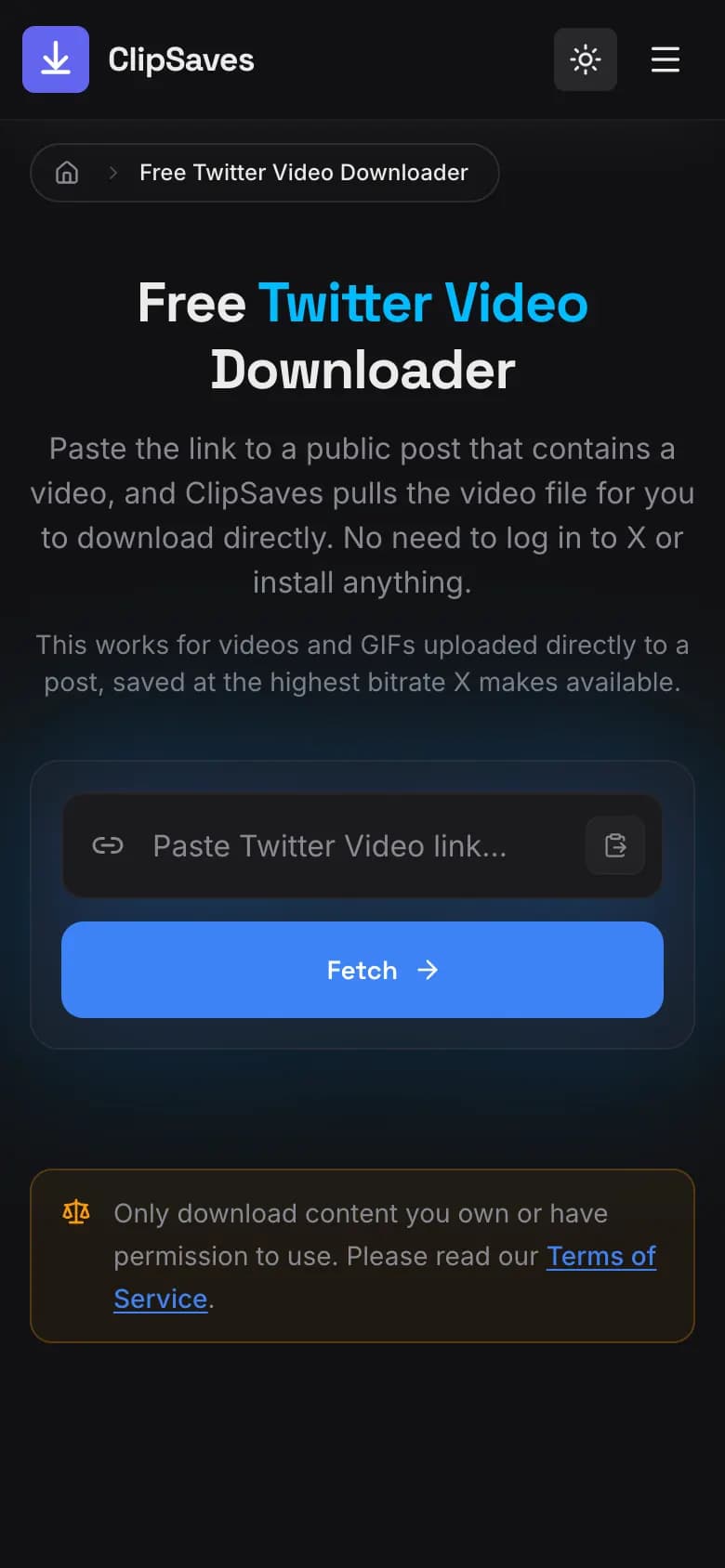
- Open Safari and navigate to ClipSaves' Twitter Video Downloader.
- Paste the link and tap to download.
- Safari saves the MP4 to the Downloads folder in the Files app. To move it into Photos, open it there, tap Share, then Save Video. Our guide to saving an X video to your iPhone camera roll walks through it.
On Android
- Tap the Share icon on the tweet, then Copy Link.
- Open your browser and go to the downloader tool.
- Paste the link and download.
- The file saves to your Downloads folder, and you can move it to your Gallery from there.
On Desktop
- Right click the tweet timestamp (or use the Share icon) and copy the link to that specific tweet not just the general profile URL.
- Paste it into the downloader tool in your browser.
- Download the video directly to your computer's default downloads folder.
Does it matter if the link says twitter.com or x.com?
No both domains point to the same platform, and a good downloader tool accepts either format without any issue. If you copied a link before the rebrand to X and it still shows "twitter.com," it'll work exactly the same as a newer "x.com" link.
What about videos in replies, not just the main tweet?
The process is identical you're always working from the link to the specific tweet containing the video, whether that tweet is someone is original post, a reply in a thread, or a quote tweet. As long as you copy the link to the exact tweet with the video attached (rather than, say, the link to the whole thread), the downloader tool will find it.
What about GIFs?
Content that displays as a "GIF" on X is technically a short, looping video file rather than a true .gif the same download process works, though the file will save as a video format rather than an actual .gif file. If GIF downloading specifically is something you do often, ClipSaves has a dedicated Twitter/X GIF Downloader built around that exact use case.
A note on video quality
X compresses video somewhat for faster loading on mobile connections, so what you download will generally match the quality of what you saw in the app a downloader tool retrieves the same file X is already serving, rather than a lower quality re recording, but it can't exceed the quality of the original upload.
Quick troubleshooting
If a download doesn't work, first check that the post is still public: a deleted post or a protected (private) account blocks any downloader tool, the same way it blocks viewing the post without logging in. Posts marked as sensitive media and quote posts are two other common causes. Our guide to why a Twitter video isn't downloading covers every case and its fix.
Whether you're on a phone or a laptop, the underlying process is the same everywhere: copy the tweet's link, paste it into a downloader, and save the file. It typically takes under 30 seconds once you know where to look for the Share option.
Downloading videos from a thread
If a video appears partway through a longer thread, make sure you're copying the link to that specific tweet in the thread, not the link to the first tweet that started it. Tapping directly on the tweet containing the video (rather than the thread as a whole) before hitting Share ensures you get the correct, specific link.
What about live streamed video that has since ended?
If someone hosted a Space or live video on X that is already ended, and a recording remains posted afterward, the same download process generally applies as long as that recording is now attached to a public tweet as a standard video. Live content that wasn't recorded or saved by the host, however, won't be retrievable after the fact a downloader tool can only work with video files that already exist as a post, not content that streamed and disappeared without being saved.
Browser compatibility notes
Downloader tools that run entirely in browser should work consistently across Safari, Chrome, Firefox, and most other modern browsers, on both mobile and desktop. If a download seems to stall specifically in one browser, trying an alternate browser is a reasonable first troubleshooting step before assuming the video itself is the problem.
Saving videos sent to you in Direct Messages
Videos shared privately through X is Direct Messages work differently from public tweets since DMs are private conversations, a downloader tool can't access that content the same way it can a public tweet. If someone sends you a video directly, saving it typically requires using whatever native save option exists within the X app itself for message attachments, rather than a link based downloader tool.
Frequently Asked Questions
Ready to download?
Try the Free Twitter Video Downloader. Free, fast, no sign-up.
Open the Free Twitter Video Downloader