How to Save an X (Twitter) Video to Your iPhone Camera Roll
Save an X (Twitter) video to your iPhone camera roll: download the MP4 in Safari, find it in Files, then move it to Photos. Plus why X's own option is limited.

To save an X (Twitter) video to your iPhone camera roll, download the video file in Safari, then move it from the Files app into Photos. Safari puts every download in Files → Downloads, not in Photos, which is why a "saved" video often seems to vanish. Open the file there, tap Share, then Save Video, and it shows up in your photo library. Fastest route: copy the post's link, paste it into the ClipSaves Twitter Video Downloader, tap Fetch, then Download, and move the MP4 into Photos.
Key takeaways
- X has its own download option, but X's Help Center says it's for paying subscribers, only on videos uploaded from July 25, 2023, and only when the uploader left "Allow video to be downloaded" on. Accounts under 18 have downloads switched off (X Help Center).
- On iPhone, files you download in Safari are saved to the Downloads folder in the Files app (Apple Support).
- To get a file from Files into Photos, use the Share button in Files (Apple iPhone User Guide).
- ClipSaves works with videos and GIFs in public posts. It can't reach protected accounts, deleted posts or Spaces audio.
Three ways to get an X video into Photos
| Method | Who can use it | Picture quality | Catch |
|---|---|---|---|
| X's own download option | X subscribers only | As uploaded | Uploader can turn it off; no videos from before July 25, 2023 |
| Downloader + Files → Photos | Anyone, no X login | Highest bitrate X offers for that post | Public posts only; one extra step to move the file |
| Screen recording | Anyone | Screen resolution, includes anything on screen | You have to trim it and keep the screen clear |
If you subscribe to X and the video allows it, X's own option is the simplest. For everyone else, and for older videos, the downloader route is the reliable one.
Step by step: download the video, then move it to Photos
- Copy the post link. In the X app, open the post with the video, tap the Share icon and choose Copy link. A post link contains
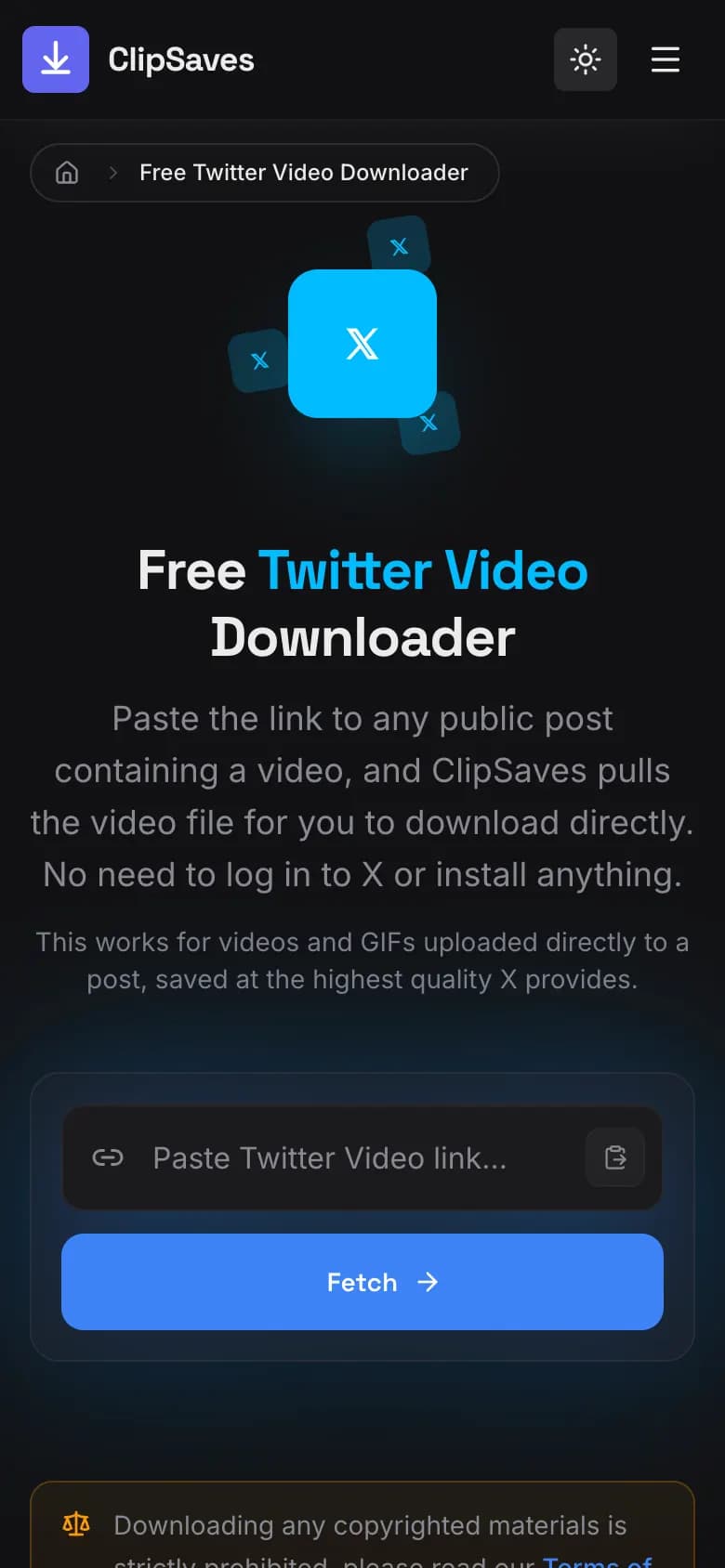
/status/followed by a long number. Links from x.com and twitter.com both work. - Paste it into ClipSaves. Open Safari, go to the Twitter Video Downloader, paste the link into the box and tap Fetch. ClipSaves finds the video file in the post.
- Download the MP4. Tap Download, and confirm if Safari asks. ClipSaves saves the highest bitrate X makes available for that post, as one MP4 file. There's no quality menu to pick from.
- Find the file. In Safari, tap the Downloads button next to the search field, then tap Downloads to see your files. You can also open the Files app and go to the Downloads folder (Apple Support).
- Move it to Photos. Open the video in Files, tap Share, then Save Video. The video now sits in your photo library alongside your camera roll, so you can edit it, add it to an album or post it from any app.
Once the copy is in Photos, you can delete the original from Files → Downloads to free up space.
Why saved X videos end up in Files, not Photos
Safari treats a video like any other download, so it goes to the Files app. Only apps that ask to save straight to your photo library, or a manual Save Video from the share sheet, put it in Photos. That's the whole trick: the video isn't lost, it's in Files → Downloads.
When the video won't save
- "Fetch" fails. The post may be from a protected account, deleted, or the video may be a YouTube or other outside player embedded in the post, which isn't an X video file. Open the link in a private Safari window: if you can't watch it there without signing in, ClipSaves can't reach it either. See why an X video won't download for every cause and fix.
- The post has several videos. Copy the link to the exact post that holds the video. For replies and quote posts, open the reply or quoted post itself and copy its link.
- You only see a GIF. X stores GIFs as short silent videos, so they download as MP4 and save to Photos as videos. The Twitter GIF downloader explains how to turn one back into an animated image.
- There's no Save Video option. Check that the download finished: a file that's still downloading, or a page saved by mistake instead of a video, can't go into Photos. Open the file in Files and make sure it plays first.
- You hit a short puzzle. After a few fetches in a row, ClipSaves shows a quick math check to keep bots out. Solve it and carry on. There's no daily limit and no sign-up.
What about screen recording?
The iPhone's built-in screen recording works on any video you can play, including posts you can't download, and the recording goes straight to your Photos library (Apple Support). The downside is that it captures whatever is on screen, at screen resolution, so you'll usually need to trim the start and end, and notifications can end up in the clip. Use it as a last resort, not the first choice.
Use downloaded videos responsibly
Only save videos you made or have permission to use, and credit the creator if you share their work. If you just want to show someone a post, sending the link is usually better. Our guide to whether downloading social media videos is legal covers the basics.
On Android or a computer? See the full guide to downloading X videos. Saving Instagram videos instead? Here's how to save an Instagram Reel with sound on iPhone.
Frequently Asked Questions
Published by
ClipSaves
The ClipSaves team builds and tests free video download tools for YouTube, TikTok, Instagram, Facebook and X, and writes step-by-step guides from hands-on testing.
Ready to download?
Try the Free Twitter Video Downloader. Free, fast, no sign-up.
Open the Free Twitter Video Downloader