How to Download YouTube Shorts on Any Device
Step by step guide to downloading YouTube Shorts on iPhone, Android, and desktop free, no app required.
YouTube Shorts are designed to be quick and disposable you scroll, you watch, you move on. But every so often one is worth keeping: a tutorial clip, a recipe, a joke you want to send to a friend without the algorithm burying it later. Here is how to actually save one, whichever device you're using.
Why you can't just "save" a Short the normal way
YouTube's built-in save feature adds a video to a playlist within your account it doesn't give you a downloadable file you can keep outside the app, share directly, or use if you ever lose access to that account. For an actual file on your device, you need a separate step.
On iPhone
- Open the Shorts video in the YouTube app.
- Tap the Share icon (the arrow pointing right, usually below the video).
- Select Copy Link from the share menu.
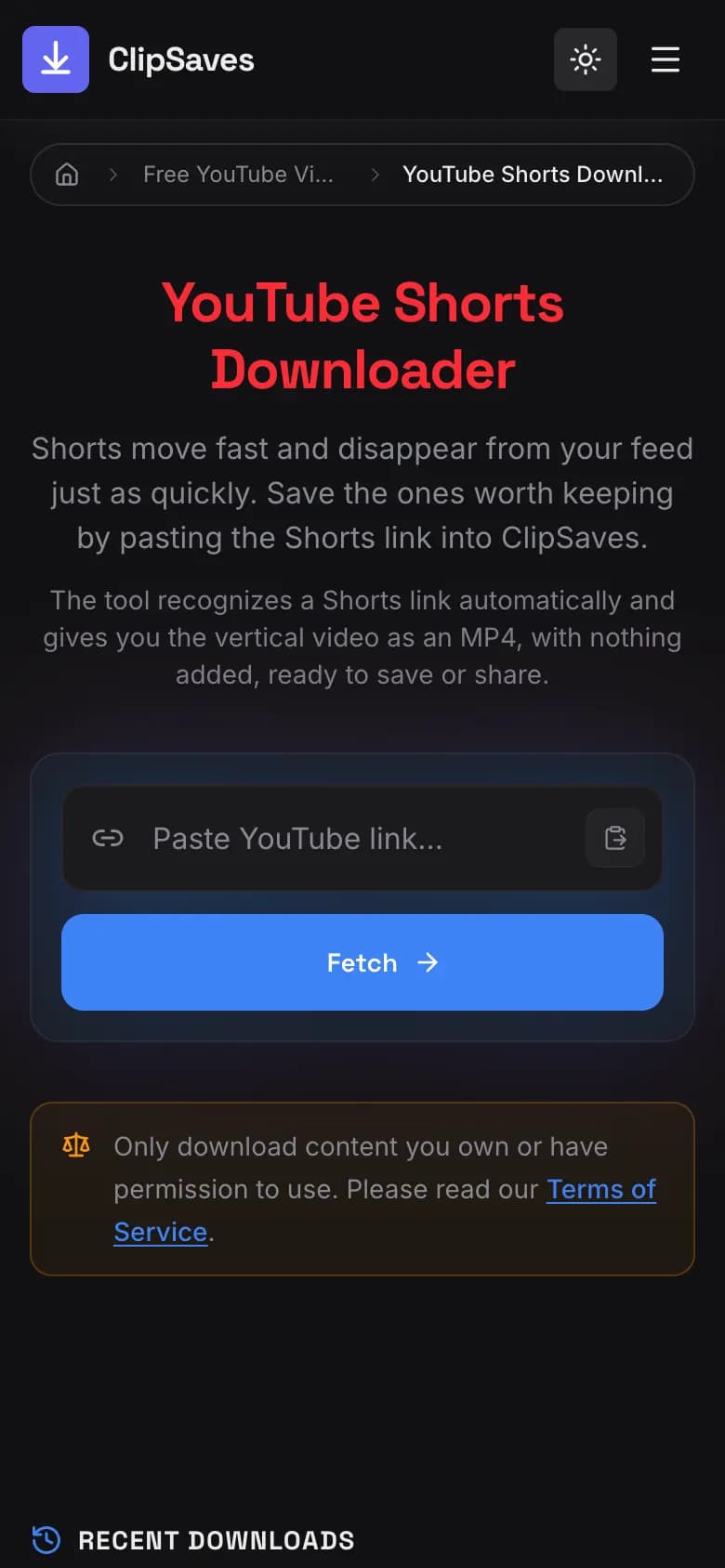
- Open a browser tab and go to a Shorts downloader tool, such as ClipSaves' YouTube Shorts Downloader.
- Paste the link into the tool and tap download.
- Safari saves the MP4 to the Downloads folder in the Files app. To put it in Photos, open it there, tap Share, then Save Video. See where downloaded videos go on iPhone.
On Android
The steps are nearly identical to iPhone:
- Tap Share on the Short you want to save, then Copy Link.
- Open your browser and navigate to the downloader tool.
- Paste the link and download.
- The file lands in your Downloads folder, and from there you can move it to your Gallery app if you'd like it alongside your other photos and videos.
On Desktop
- Open the Short in a browser (it'll show up in YouTube's normal vertical player).
- Copy the URL directly from your browser's address bar.
- Paste it into the downloader tool.
- Click Download. ClipSaves picks the best quality automatically, and the file saves to your computer's default Downloads folder.
Will the quality hold up?
Shorts are typically uploaded in a vertical, high resolution format, and a good downloader tool will preserve that you shouldn't notice any drop in quality between what you saw in the app and what you download, as long as the tool pulls the original file rather than re recording your screen.
A note on what you're allowed to do with it
Downloading a Short for personal viewing watching it later, offline, or sharing it directly with a friend is generally not an issue. Where it gets more complicated is reposting someone else's Short to your own account or using it commercially without permission that can run into copyright and platform terms of service issues regardless of which platform you repost it to. If it is your own content, or something explicitly shared for reuse, none of that applies.
Quick troubleshooting
If a download doesn't work on the first try, double check that you copied the link to the specific Short and not just the general YouTube homepage or channel page. Some downloader tools also have trouble with extremely new uploads that haven't fully processed on YouTube's end yet waiting a few minutes and trying again usually resolves it.
Saving a Short only takes about 30 seconds once you know the steps, and the process is the same core idea across every device: copy the link, paste it into a downloader, and save the file. From there, it is yours to keep, watch offline, or share however you'd like.
What about downloading multiple Shorts at once?
If you're trying to save several Shorts from the same creator, the process still works one link at a time there isn't a legitimate way to bulk download an entire channel's worth of Shorts in a single step, and tools claiming to do so are worth being cautious about. For a handful of videos, copying and pasting each link individually only takes a few extra seconds per video, and it keeps the process straightforward and reliable.
Saving Shorts for offline viewing while traveling
One of the more practical reasons people download Shorts is to watch them without using mobile data on a flight, in an area with spotty service, or just to save on your data plan. Downloaded Shorts are normal MP4 files, so they play offline in Files or, once you've saved them there, in Photos, with no buffering.
Storage considerations
Shorts are typically short usually under a minute so file sizes tend to be small, generally a few megabytes each depending on resolution. Even downloading a few dozen won't meaningfully impact storage on most modern phones, though if you're saving a large batch regularly, it is worth periodically clearing out ones you no longer need, the same as you would with any other saved photos or videos.
When a download might look slightly different than expected
Occasionally, a downloaded Short might appear with black bars on the sides if you're viewing it on a non vertical screen or media player this is just how vertical video displays outside of a phone is native format, and it doesn't reflect any quality loss in the file itself.
Frequently Asked Questions
Ready to download?
Try the YouTube Shorts Downloader. Free, fast, no sign-up.
Open the YouTube Shorts Downloader