How to Save an Instagram Reel With Sound on iPhone
Save an Instagram Reel with its sound on iPhone, and fix silent downloads: why audio goes missing, why the Download option disappears, and what to do instead.
To save an Instagram Reel with sound on your iPhone, either use Instagram's own Download option (it keeps the audio but adds a watermark) or copy the Reel's link into a downloader that saves the video file as Instagram plays it. If the Reel has no Download option, or the file you saved is silent, the reasons are usually simple: the creator turned downloads off, the account is private, or Instagram muted the audio for rights reasons. Fastest fix: copy the Reel's link, paste it into the ClipSaves Instagram Reels Downloader, tap Fetch, then Download.
Key takeaways
- Instagram lets anyone download a public account's Reels unless the creator changes their download settings. Downloads include an Instagram watermark, the creator's username and audio attribution (Instagram Help).
- Reels from private accounts can't be downloaded by other people, and Instagram's download option isn't available on computers (Instagram Help).
- Instagram can mute a Reel's audio when its music agreements change. A muted Reel stays silent however you save it (Instagram Help).
- On iPhone, files you download in Safari land in the Files app, in the Downloads folder (Apple Support).
Two ways to save a Reel with sound
| Instagram's Download option | ClipSaves Reels Downloader | |
|---|---|---|
| Works on | Public Reels whose creator allows downloads | Public Reels |
| Sound | Included, with audio attribution | The soundtrack Instagram plays for the Reel |
| Watermark | Instagram logo and creator's username added | None added by ClipSaves |
| Where it goes on iPhone | Your camera roll | Files › Downloads (Safari) |
| Private accounts | No | No |
| Needs the Instagram app | Yes (not available on computers) | No, any browser |
Both routes respect the creator's account privacy. Neither can get audio back on a Reel Instagram has already muted.
Method 1: Instagram's built-in Download
- Open the Reel in the Instagram app.
- Tap the paper plane (Sharing options) at the bottom right.
- Tap Download. If you don't see it, jump to the section on the missing Download button below.
Instagram describes this flow for your own Reels (Instagram Help), and its download rules say other people's public Reels can be downloaded too unless the creator switched it off (Instagram Help). The saved copy carries the Instagram watermark, the username and audio attribution, and Instagram says downloaded Reels aren't allowed to be used for commercial purposes.
Method 2: Save the Reel with ClipSaves on iPhone
This route works in Safari, so you don't need another app.
- In Instagram, tap the paper plane on the Reel, then Copy link.
- Open Safari and go to the Instagram Reels Downloader.
- Paste the link into the box and tap Fetch.
- When the preview appears, tap Download.
- Find the file in the Files app under Downloads, or tap the Downloads button in Safari (Apple Support).
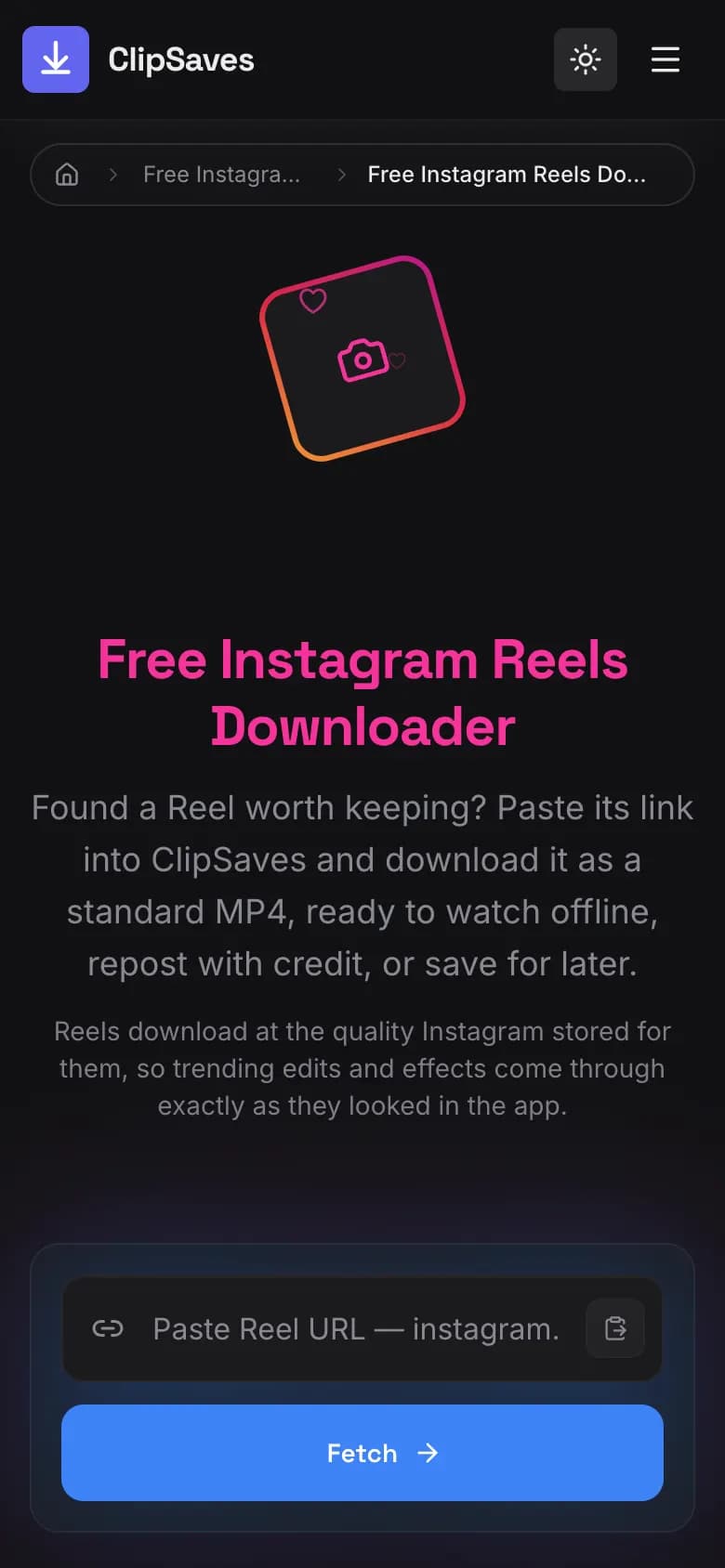
ClipSaves fetches the Reel's video file as Instagram serves it to viewers, including its soundtrack, and picks the best quality available. It works with Reels from public accounts only, one Reel per link. After a few fetches in a row you may see a quick math check before the next one. If you want the video in the Photos app, open it in Files and use the Share button to save it there.
Why your saved Reel has no sound
Work through these in order:
- Instagram muted the Reel. Instagram says it has agreements with music rights holders, and changes to those agreements can lead to a Reel's audio being muted (Instagram Help). If the Reel plays silently inside Instagram, every saved copy will be silent too, whichever method you use.
- You screen recorded it without audio. iPhone screen recordings can capture sound, but Apple notes that some apps might not allow you to record audio or video (Apple Support). A downloaded file is more reliable than a recording.
- The Reel's original audio couldn't be included. Instagram says original audio is eligible to be included in a downloaded Reel if the original Reel that used that audio is downloadable (Instagram Help).
- It's a playback problem, not the file. Turn the volume up and play the file in Files or Photos before assuming it's silent.
Why there's no Download option on a Reel
Instagram's own rules explain most cases (Instagram Help):
- The creator turned downloads off, for all their Reels or just this one.
- The account is private. No one can download Reels from private accounts.
- The creator is under 18. Instagram switches Reel downloads off by default for teens.
- You're on a computer. The Download option is only in the iPhone, iPad and Android apps.
ClipSaves can't get around the first three either. It only works with Reels from public accounts. If the creator turned downloads off, ask them for the video instead.
The Save bookmark doesn't download anything
The Save (bookmark) icon under a Reel keeps it in a private section of your Instagram profile, not on your phone (Instagram Help). It's useful for finding a Reel later, but you can't watch it offline or play it in another app.
Use saved Reels responsibly
Only download Reels you made or have permission to use, and credit the creator if you share their work. Instagram's download rules say downloaded Reels aren't for commercial use. Our guide to whether downloading social media videos is legal covers the basics.
Want the differences between Reels and Stories, or the no-watermark angle? See Instagram Reels vs Stories and how to download Instagram Reels without a watermark. For Stories, use the Instagram Story Downloader.
Frequently Asked Questions
Published by
ClipSaves
The ClipSaves team builds and tests free video download tools for YouTube, TikTok, Instagram, Facebook and X, and writes step-by-step guides from hands-on testing.
Ready to download?
Try the Free Instagram Reels Downloader. Free, fast, no sign-up.
Open the Free Instagram Reels Downloader