How to Get the Transcript of a YouTube Video (Free)
Get the full transcript of any YouTube video in seconds: view it on YouTube, copy it as plain text, or save it as an SRT or VTT file. Free, on any device.
Most YouTube videos already have a transcript; you just have to know where it is. On a computer, open the video, expand the description and click Show transcript. The full text appears beside the video, with a timestamp on every line. To keep it as a file, paste the video link into the ClipSaves YouTube Subtitle Downloader and download the captions as SRT or VTT. This guide covers both methods, how to turn the file into clean text, and what to do when a video has no transcript at all.
Where a YouTube transcript comes from
A YouTube transcript is simply the video's captions shown as one block of text. Captions come from one of two places:
- Creator-uploaded captions. The creator wrote or edited them. These are usually accurate, with proper punctuation and names spelled correctly.
- Automatic captions. YouTube's speech recognition generates them for many videos in supported languages. They're good for clear speech, but they miss names, technical terms and words spoken over music, and often lack punctuation.
If a video has neither, there's no transcript to get. More on that below.
Method 1: View the transcript on YouTube (computer)
- Open the video on youtube.com.
- Below the title, click ...more to expand the description.
- Scroll to the bottom of the description and click Show transcript. YouTube's help page describes the same steps.
- The transcript opens in a panel next to the video and scrolls along as it plays. Click any line to jump to that moment.
- To change the language, use the language menu at the bottom of the panel, if the video has more than one caption track.
To copy it as text: open the ⋮ menu at the top of the transcript panel and choose Toggle timestamps to hide the times, then drag to select the text and copy it (Cmd+C on Mac, Ctrl+C on Windows). Paste it into Google Docs, Word or Notes.
Tip: for a long video, copying from the panel can be fiddly because it only loads lines as you scroll. Downloading the caption file (Method 2) gives you everything at once.
Method 2: Download the transcript as a file (any device)
This works on iPhone, Android, Mac and Windows, and gives you the whole transcript in one file.
- Copy the video's link (Share → Copy link in the app, or the address bar in a browser).
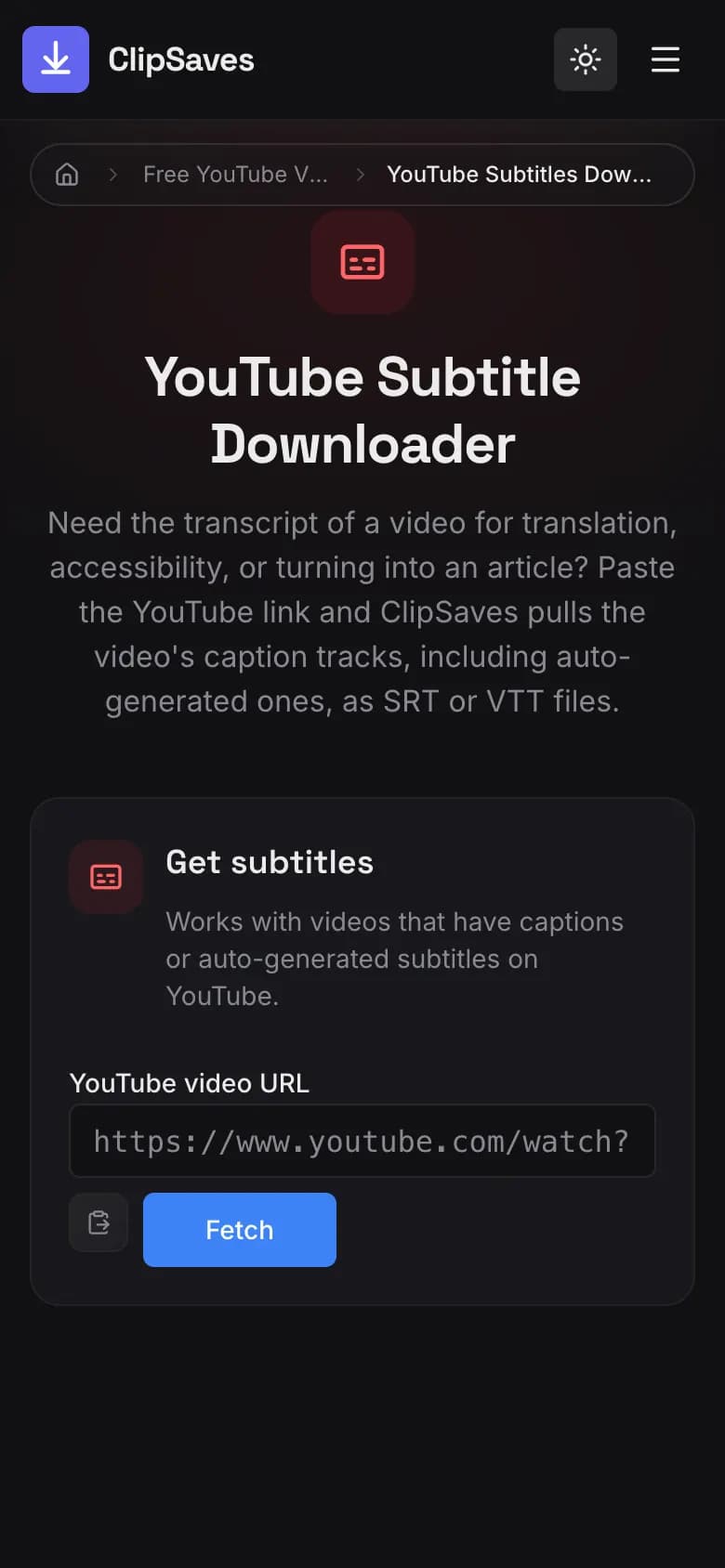
- Open the YouTube Subtitle Downloader on ClipSaves and paste the link.
- Press Fetch. ClipSaves lists the caption tracks the video has, including automatic ones.
- Pick the language track and a format:
- SRT – the most widely supported subtitle format; opens in any text editor and every video editor. - VTT – the web format, used by HTML5 video players and many online course platforms.
- Press Download.
Both formats are plain text files with a timestamp before each caption, so you can open them in TextEdit, Notepad, Google Docs or Word.
Turning an SRT file into clean text
An SRT file looks like this:
12
00:01:04,200 --> 00:01:07,900
The first thing to check is the lighting.
To get paragraph-style text, remove the line numbers and timestamps. The quickest ways:
- Find and replace in Word or Google Docs. Word's Use wildcards option or Google Docs' Match using regular expressions can delete every timestamp line in one go.
- Paste into a transcript cleaner. Many free "SRT to text" converters strip the numbers and times for you.
- Keep the timestamps if you're writing notes or quoting a video, since they let you link to the exact moment later.
Getting a transcript on iPhone and Android
In the YouTube app, open the video, tap the description below the title, scroll down and tap Show transcript. You can read and tap lines to jump, but copying a long transcript in the app is awkward.
To save the text on a phone, use Method 2: open Safari or Chrome, go to the YouTube Subtitle Downloader, paste the link and download the SRT. On iPhone it goes to the Files app under Downloads; on Android, to your Downloads folder. Open it in Google Docs or Pages to read or edit.
Link to an exact moment from the transcript
Timestamps are the most useful part of a transcript when you're citing a video. To share the exact point where something is said:
- In the transcript panel, click the line to jump the video to that moment.
- Pause the video, click Share, and tick Start at; the box already shows the current time.
- Copy the link. It now ends in something like
&t=184s, and anyone who opens it starts at that line.
You can also build the link yourself: add &t= plus the number of seconds to a normal video link, or ?t= to a youtu.be short link. In notes or a paper, pair the quote with its timestamp (for example, "at 3:04") so readers can check it.
What people use YouTube transcripts for
- Studying. Search a 40-minute lecture for the one formula you need, or read it at your own pace. Quoting with timestamps makes citations easy to check.
- Writing and research. Journalists, bloggers and researchers quote interviews and talks accurately instead of re-listening.
- Accessibility. Text is easier to follow for people who are deaf or hard of hearing, or anyone in a place where they can't play sound.
- Translation. A caption file is the starting point for subtitles in another language.
- Repurposing your own videos. Creators turn their transcripts into blog posts, newsletters, show notes and social captions. For a presentation, pair the text with the video itself: our guide to putting a YouTube video in PowerPoint or Google Slides shows how.
When a video has no transcript
If Show transcript is missing, or ClipSaves says the video has no captions, it's usually because:
- The creator turned captions off or never added any, and YouTube didn't generate automatic ones.
- The video is too new. Automatic captions can take a while to appear after upload, especially for long videos.
- The audio is music-only, very noisy, or in a language YouTube doesn't auto-caption.
- It's a live stream still in progress. Captions usually become available after the replay is processed.
In those cases you'd need a speech-to-text tool. Google Docs' Voice typing, the built-in dictation on Mac and iPhone, or a dedicated transcription service can create one. For your own videos, YouTube Studio's Subtitles section also lets you add or auto-sync captions.
Can you use someone else's transcript?
A transcript is a copy of the creator's words, so it's covered by the same copyright as the video. Reading it, studying from it and quoting short passages with credit is normal. In the US, quoting for commentary, criticism, teaching or research is often fair use. Publishing someone's full transcript as your own article, or selling it, needs their permission. For your own videos, the transcript is yours to reuse however you like.
Summary
To get a YouTube video's transcript, open the video on a computer, expand the description and click Show transcript; hide the timestamps from the ⋮ menu if you want to copy plain text. To save the whole transcript as a file on any device, paste the link into the YouTube Subtitle Downloader and download it as SRT or VTT. If a video has no captions, there's no transcript to get, and you'll need a speech-to-text tool instead.
Frequently Asked Questions
Published by
ClipSaves
The ClipSaves team builds and tests free video download tools for YouTube, TikTok, Instagram, Facebook and X, and writes step-by-step guides from hands-on testing.
Ready to download?
Try the YouTube Subtitles Downloader. Free, fast, no sign-up.
Open the YouTube Subtitles Downloader