How to Save a TikTok Video to Your Camera Roll (iPhone and Android)
Save any TikTok to your camera roll with Save video, keep your own TikToks watermark-free, and fix a missing Save button or videos that never reach Photos.

To save a TikTok video to your camera roll, tap the Share arrow on the video and choose Save video, or press and hold the video and pick Save video from the menu. The file goes straight to your phone's photo gallery. That copy can carry the TikTok watermark and username, and the option only appears when the creator allows downloads (TikTok Help Center).
Key takeaways
- TikTok's own Save video puts the file in Photos (iPhone) or your Gallery (Android) in one tap.
- Saved copies may include the TikTok watermark and creator username, depending on the creator's settings.
- No Save video button means the creator turned downloads off. Private videos can't be saved at all.
- Your own drafts save with no watermark by default.
- For a public video you have the right to keep without the watermark, a link-based downloader like ClipSaves saves an MP4 you then move from Files to Photos.
Method 1: TikTok's built-in Save video
This is the fastest way, and it works the same on iPhone and Android:
- Open the video in the TikTok app.
- Tap the Share arrow on the right side of the screen.
- Tap Save video.
- Wait for the confirmation. The video is now in your camera roll.
Quicker: press and hold anywhere on the video, then tap Save video in the pop-up menu.
TikTok describes both methods in its Help Center. The catch is the watermark: TikTok says saved videos "may include the TikTok watermark and creator username", depending on the creator's settings.
Method 2: Save your own TikToks without the watermark
If it's your own video, you have two clean options.
Drafts. Since TikTok changed how drafts work, you don't have to post a draft to keep it:
- Go to Profile, then Drafts.
- Open the draft and tap More at the top.
- Tap Save to device.
TikTok says drafts save with no watermark by default; you can turn the watermark on in the draft settings before saving.
Videos you already posted. Published videos save with the normal Save video button, which may add the watermark. To get a clean copy of your own public video, copy its link and use the TikTok no-watermark downloader (steps below). That's handy for reposting your TikToks to Reels or Shorts, where a TikTok watermark doesn't belong.
Method 3: Save a public TikTok with a link
- In TikTok, tap Share → Copy link.
- Open the ClipSaves TikTok Video Downloader in Safari or Chrome and paste the link.
- Tap Fetch, then download the MP4.
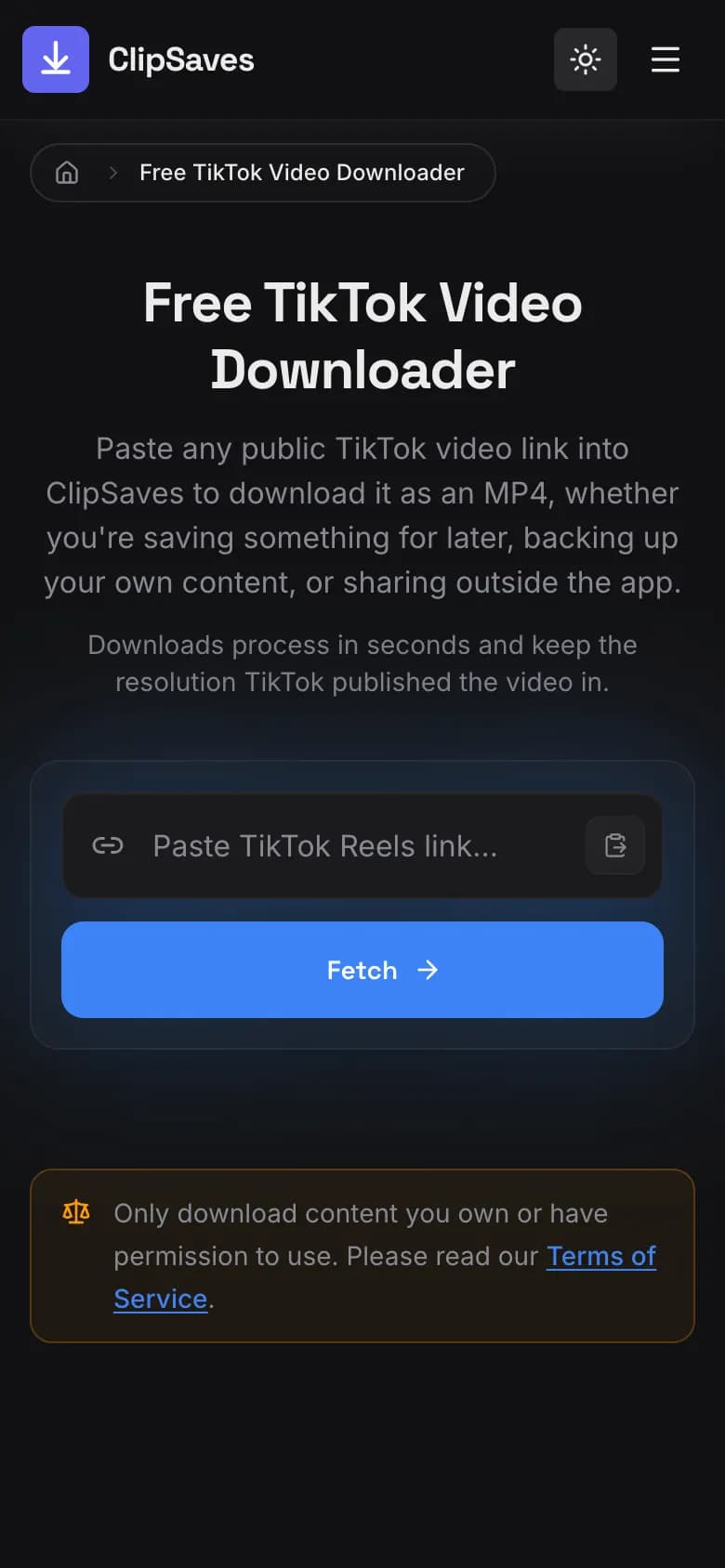
ClipSaves asks TikTok for the version without the watermark first and falls back to the watermarked file if that's the only one available. You get one file in the best quality available. It works with public videos only; photo posts (slideshows), Stories and private videos aren't supported.
Use this for your own videos, or for videos you have permission to keep. If a creator has switched off downloads, that's their choice; ask them before saving their work, and never repost someone else's video as yours.
Move the download from Files to Photos (iPhone)
On iPhone, a file downloaded in Safari goes to the Files app, not Photos. To put it in your camera roll:
- Open the Files app and go to Downloads.
- Tap the video, then tap Share.
- Tap Save Video.
It now appears in Photos → Recents. If you can't find the file at all, see where downloaded videos go on iPhone.
On Android, the file lands in your Downloads folder and usually shows up in Google Photos or your Gallery app under Downloads.
Why the video won't save to your camera roll
| What you see | Why | What to do |
|---|---|---|
| No Save video button | The creator turned off downloads | Ask the creator; it's their setting |
| No Save video on your own video | Downloads are off on your account | Profile → ☰ → Settings and privacy → Privacy → Downloads → turn on Allow video downloads |
| "Saved", but not in Photos (iPhone) | TikTok can't access your photo library | iPhone Settings → TikTok → Photos, and allow access |
| Download failed | Weak connection or full storage | Free up space, clear TikTok's cache, try again |
| Video is private | Only approved viewers can see it | Can't be saved, by any tool |
The fixes for your own videos and for photo access come straight from TikTok's troubleshooting steps. If a link-based download fails instead, see why a TikTok video won't download.
Frequently Asked Questions
Published by
ClipSaves
The ClipSaves team builds and tests free video download tools for YouTube, TikTok, Instagram, Facebook and X, and writes step-by-step guides from hands-on testing.
Ready to download?
Try the Free TikTok Video Downloader. Free, fast, no sign-up.
Open the Free TikTok Video Downloader