How to Download a Facebook Live Video (Before the 30-Day Limit)
Facebook deletes Live videos 30 days after the broadcast. How to download your own Live as an MP4, save a public replay with a link, and what can't be saved.
You can download a Facebook Live video once the broadcast has ended and the replay is posted. If it's your own Live, Facebook lets you download it as an MP4 from your profile, your Page, Meta Business Suite or your Activity log. If it's someone else's public replay, copy the link and paste it into a link-based downloader like ClipSaves. Do it soon: since February 19, 2025, Facebook keeps Live videos for only 30 days and then deletes them (Meta Business Help Center).
Key takeaways
- A stream that's still on air can't be downloaded. There's no finished file until it ends.
- Facebook deletes Live videos 30 days after the broadcast unless you download them or turn parts into reels.
- Your own Live: Options → Download video in full-screen view on your profile or Page.
- A Page's Live in Meta Business Suite offers Download SD or Download HD.
- A public replay from someone else can be saved by link. Private, friends-only and group-only Lives can't be saved by any outside tool.
Why the 30-day limit matters
Facebook changed how it stores Live videos in February 2025. In Meta's words, Live videos "are kept on your Facebook Page or profile for 30 days after they're published". After that they're "automatically removed from your Page or profile and deleted from Meta servers" (Meta Business Help Center).
Facebook's Live guidelines say the same thing from the creator's side. You can download the full Live video "at any time within the 30-day window", and anything not saved, downloaded or turned into Reels is deleted 30 days after the session ends (Facebook Help Center).
Two exceptions, per Meta: Live videos from memorialized accounts, and copyrighted Live videos uploaded to Rights Manager, are not removed.
| Day | What happens |
|---|---|
| Live is on air | Watch only. There's no file to download yet. |
| Broadcast ends | The replay appears on the profile or Page and can be downloaded. |
| Days 1 to 30 | Replay, share, clip to reels, delete or download. |
| After day 30 | The video is deleted from Facebook. Nobody can download it any more. |
So if a church service, a class, a sports stream or a family event matters to you, save it in the first few weeks, not "some day".
Download your own Facebook Live video
Meta lists three ways (Download Facebook Live videos). You need to be the original broadcaster, or have Facebook access with full control of the Page. The file downloads to your computer as an .MP4.
From your profile or Page
- On a computer, go to your profile, or switch into the Page and open it.
- On a profile, open the Videos tab. On a Page, open the Live tab (it may sit under More).
- Click the Live video you want.
- Open the full-screen view, click Options and choose Download video.
If nothing happens, Meta's advice is to refresh the page and try again.
From Meta Business Suite (Page Lives)
- Go to Meta Business Suite.
- Choose Content from the main menu.
- Under Posts & reels, find the Live video.
- Click Options and choose Download SD or Download HD.
From your Activity log
- Go to Settings and privacy.
- Select Activity log.
- Select Live videos.
- Next to the video, select Options, then Download.
To save many Lives in one go, Meta points you to downloading a copy of your information, which can bundle all your Live videos into one file.
Save someone else's public Facebook Live replay
When the broadcast was public, for example a Page's news show, a city council session or a public church stream, the replay is an ordinary Facebook video post. You can save it by link while it's still online:
- Wait until the stream has ended and the replay is posted.
- Open the replay, tap Share, then Copy link. On a computer you can copy the address bar instead; replay links usually look like
facebook.com/PageName/videos/.... - Open the ClipSaves Facebook Video Downloader and paste the link.
- Press Fetch, then Download.
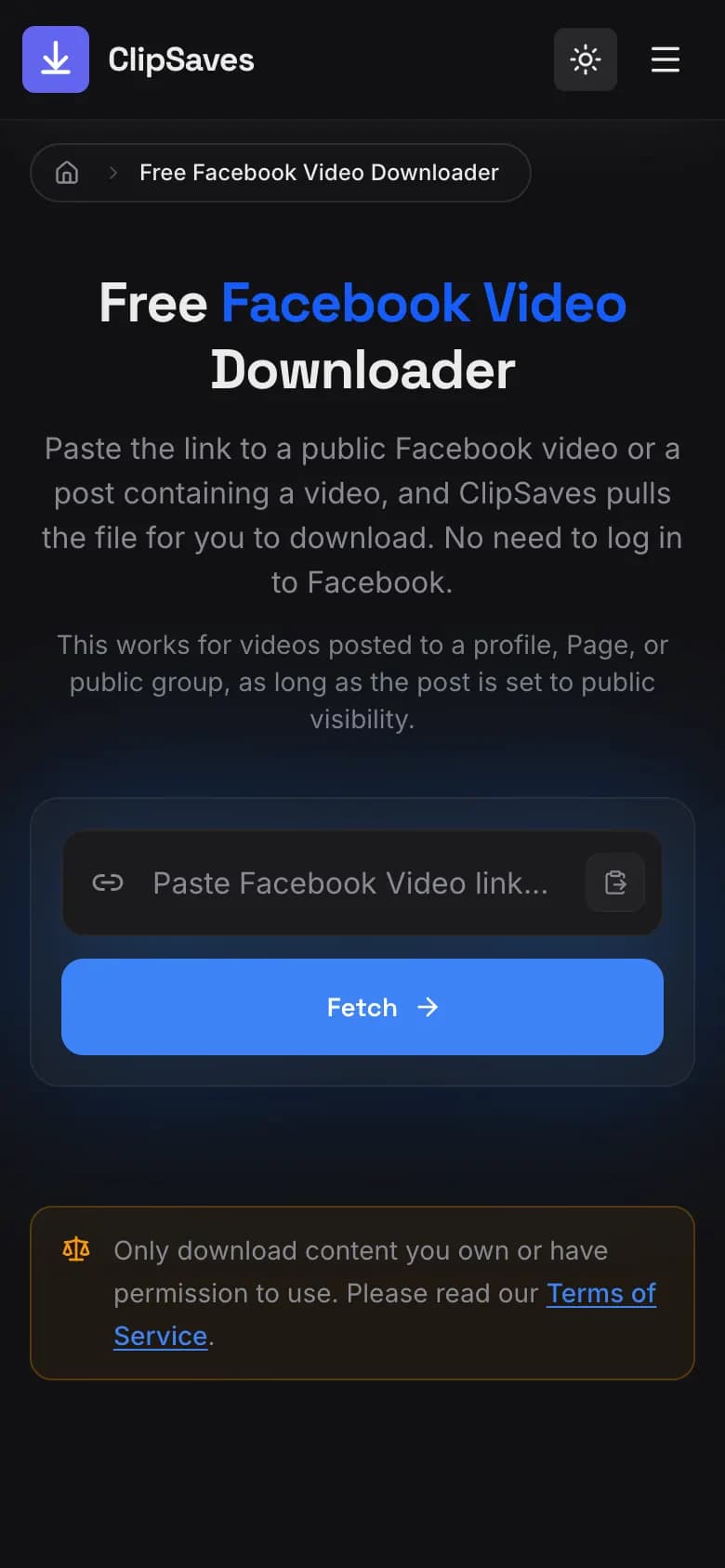
We tested this on November 11, 2026 with a public Page's Live replay, and ClipSaves fetched it like any other Facebook video. You get one MP4 in the best quality Facebook serves for that replay; there's no quality menu to pick from. Long broadcasts make big files, so use Wi-Fi.
ClipSaves only sees what a logged-out visitor sees. If a Live was shared with friends only, posted in a private group, or is on a private profile, Facebook shows a login wall instead of the video. No link-based tool can get past that, and you should never give your Facebook password to a site that says it can. Why private Facebook videos fail covers this in more detail.
Move the video to your iPhone camera roll
Safari saves downloads to the Files app, not Photos. To move the replay into your camera roll:
- Open Files and go to Downloads.
- Tap the MP4, then tap Share.
- Tap Save Video.
It now shows up in Photos → Recents. Can't find the file? See where downloaded videos go on iPhone. On Android, the file lands in Downloads and usually appears in your Gallery or Google Photos.
When a Facebook Live won't download
| What you see | Why | What to do |
|---|---|---|
| No replay on the Page | The stream is still live, or the host deleted it | Wait for the broadcast to end, or ask the host |
| Replay was there last month, now gone | Facebook deleted it 30 days after the broadcast | Ask the host whether they kept a copy |
| Login wall or "content isn't available" | Friends-only, private group or private profile | Only the broadcaster can download it. Ask them for the file |
| No Download video option on your own Live | You're not the original broadcaster and don't have full control of the Page | Ask a Page admin with full control |
| Download doesn't start (your own Live) | Facebook glitch | Refresh the page and try again, as Meta suggests |
Whose video is it?
Saving a public replay to watch later, or keeping a copy of your own stream, is ordinary personal use. Re-uploading someone else's Live as your own content is not, and downloading it gives you no rights to it. For anything you plan to share or publish, ask the broadcaster first. If you're a rights holder, see our DMCA policy. For the general rules, read is downloading social media videos legal.
The short version
- Your own Live: full-screen view → Options → Download video (or Meta Business Suite → Content → Download HD).
- Someone else's public replay: Copy link → paste into the Facebook downloader → Fetch → Download.
- Do it within 30 days. After that, Facebook deletes the video.
Frequently Asked Questions
Published by
ClipSaves
The ClipSaves team builds and tests free video download tools for YouTube, TikTok, Instagram, Facebook and X, and writes step-by-step guides from hands-on testing.
Ready to download?
Try the Free Facebook Video Downloader. Free, fast, no sign-up.
Open the Free Facebook Video Downloader