Can't Save Your Instagram Story to Camera Roll? How to Fix It
Instagram Story not saving to your camera roll? Turn on the right setting, give Instagram Photos access, save from your archive, or save a public Story by link.
If your Instagram Story won't save to your camera roll, check two things first: the save setting inside Instagram, and whether Instagram is allowed to add photos to your phone. For a Story you already posted, open it, tap the options menu at the bottom right and choose to save the photo or video. Someone else's Story has no save button at all; for a public account, copy the Story link and use a downloader.
Key takeaways
- Your own Story, before posting: tap the download (save) icon at the top of the screen before you share it.
- Your own Story, after posting: open it, tap the options menu in the bottom right, then save the photo or video (Instagram Help Center).
- Automatic saving lives in Instagram's settings under Archiving and downloading.
- On iPhone, Instagram also needs permission to add to your Photos library.
- Someone else's Story: copy the link to that one Story and paste it into the Instagram Story Downloader. Public accounts only.
Why your Story isn't saving to your camera roll
Most "can't save" problems come down to one of these:
- Automatic saving is off. Instagram only copies Stories to your phone automatically when the setting is on. Posting a Story does not save it by itself.
- The Story is already posted. The save icon you see while editing disappears once you share. After that, saving happens from the options menu on the posted Story or from your archive.
- Instagram can't write to your photos. If you once denied Instagram access to your photo library, saves fail quietly. This is the most common cause on iPhone.
- Your phone is out of space. A video Story needs free storage like any other video. Clear some space and try again.
- It isn't your Story. Instagram gives you no save option for other people's Stories. That's by design, not a bug.
How to save your own Story
Before you post it
When you're editing a Story, tap the download or save icon at the top of the screen before you share it. The photo or video, with your stickers and text, goes to your camera roll.
After you've posted it
- Open your Story (tap your profile picture).
- Tap the options menu in the bottom right corner.
- Choose to save the photo or video.
Instagram describes both methods in its Help Center article on saving Stories.
After it has expired
Stories leave your profile after 24 hours, but Instagram keeps your own in your Stories archive if archiving is on (Instagram Help Center). Go to your profile, open the menu, tap Archive, pick the Story, then use its options menu to save it. If archiving was off when you posted, Instagram has no copy to give you.
Turn on automatic saving
So every Story lands in your camera roll without an extra tap:
- Go to your profile and tap the menu (three lines) at the top right.
- Tap Archiving and downloading.
- Turn on the option to save your Story to your camera roll (in recent versions it's labelled Save story to camera roll).
Menu names change between app versions. If you don't see this exactly, search "archiving" in Instagram's settings. Some people on r/Instagram report that turning the setting off and on again fixed saves that had stopped working, so it's worth trying if it already looks on.
While you're there, keep Save story to archive on as well. It's your backup when a save to the phone fails.
On iPhone: let Instagram add to Photos
iOS asks each app for permission before it can touch your photo library. You can see and change what you've allowed in Settings → Privacy & Security (Apple Support).
- Open Settings → Privacy & Security → Photos.
- Tap Instagram.
- Choose an option that allows access, not None.
Then go back to Instagram and save the Story again. If you're not sure where saved files end up, see where downloaded videos go on iPhone.
On Android: check storage permission and space
Open your phone's Settings → Apps → Instagram → Permissions and allow photos and videos (the exact wording depends on your phone maker and Android version). Check free storage under Settings → Storage. Restart Instagram afterwards.
How to save someone else's public Story
Instagram doesn't offer a save button for other people's Stories, but a public Story can be downloaded from its link:
- Open the Story and tap the paper airplane share icon, then Copy link. It must be the link to that one Story, not the profile.
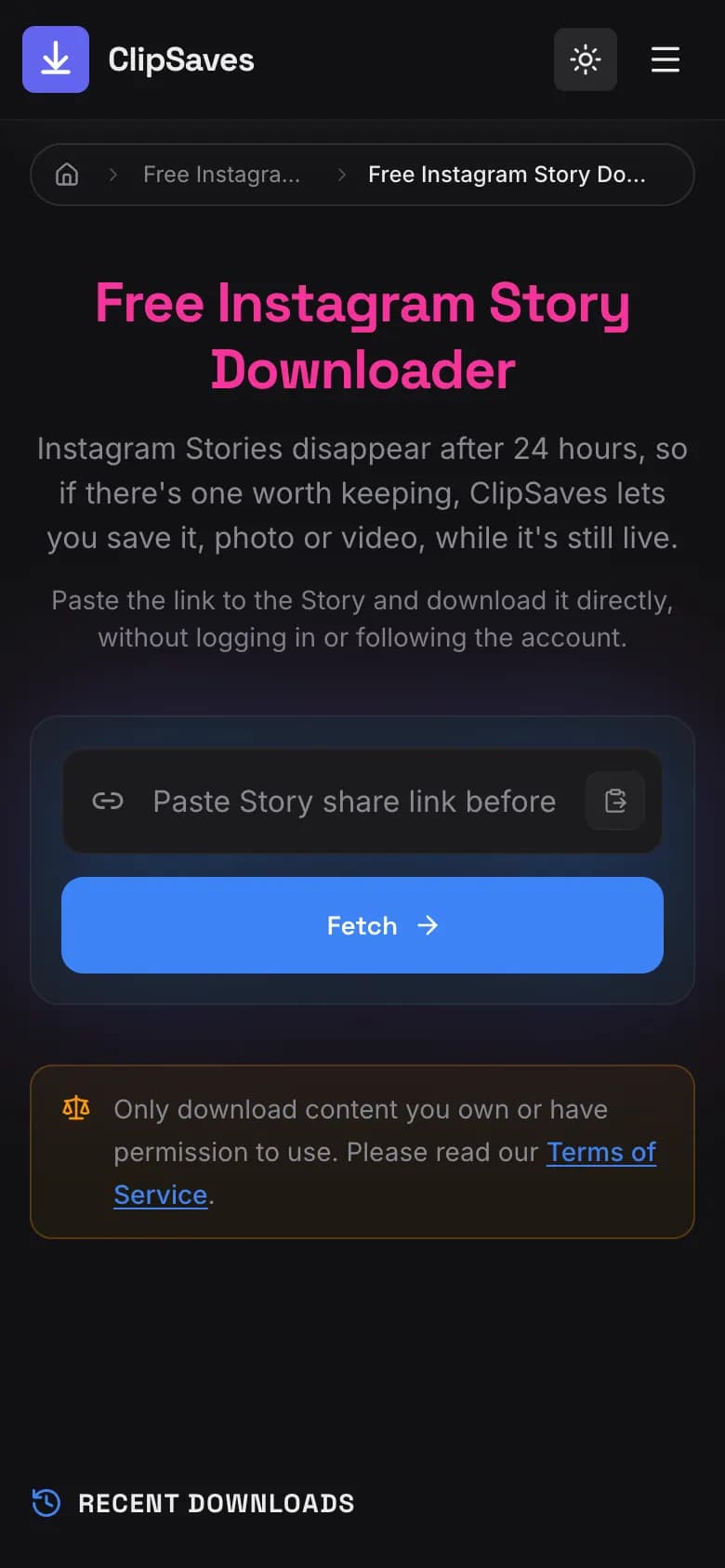
- Open the ClipSaves Instagram Story Downloader and paste the link.
- Tap Fetch, then Download. A video Story saves as MP4, a photo Story as an image. ClipSaves picks the best quality available.
On iPhone, the file goes to the Files app (Downloads) first. Open it and use Save Video or Save Image to put it in Photos.
For a Story that has been added to a Highlight, use the Highlights downloader with the highlight's link instead. More tips on timing are in how to save Instagram Stories before they expire.
What can't be saved
- Private accounts. Even if you follow them. ClipSaves never asks for your Instagram login, so it only sees what's public.
- Expired Stories. After 24 hours a Story is gone for everyone except the owner (in their archive), unless it was added to a Highlight.
- Close Friends Stories. They're only shown to the people on that list, so they aren't public.
Only save other people's Stories for personal use, and ask before reposting someone's work.
Frequently Asked Questions
Published by
ClipSaves
The ClipSaves team builds and tests free video download tools for YouTube, TikTok, Instagram, Facebook and X, and writes step-by-step guides from hands-on testing.
Ready to download?
Try the Free Instagram Story Downloader. Free, fast, no sign-up.
Open the Free Instagram Story Downloader